
In order to use one of the provided Stripe credit card readers, the device must be connected to the iPad via Bluetooth.
Make sure that the reader is turned on and then go to the settings app on the iPad. Select Bluetooth and the reader should appear under other devices.
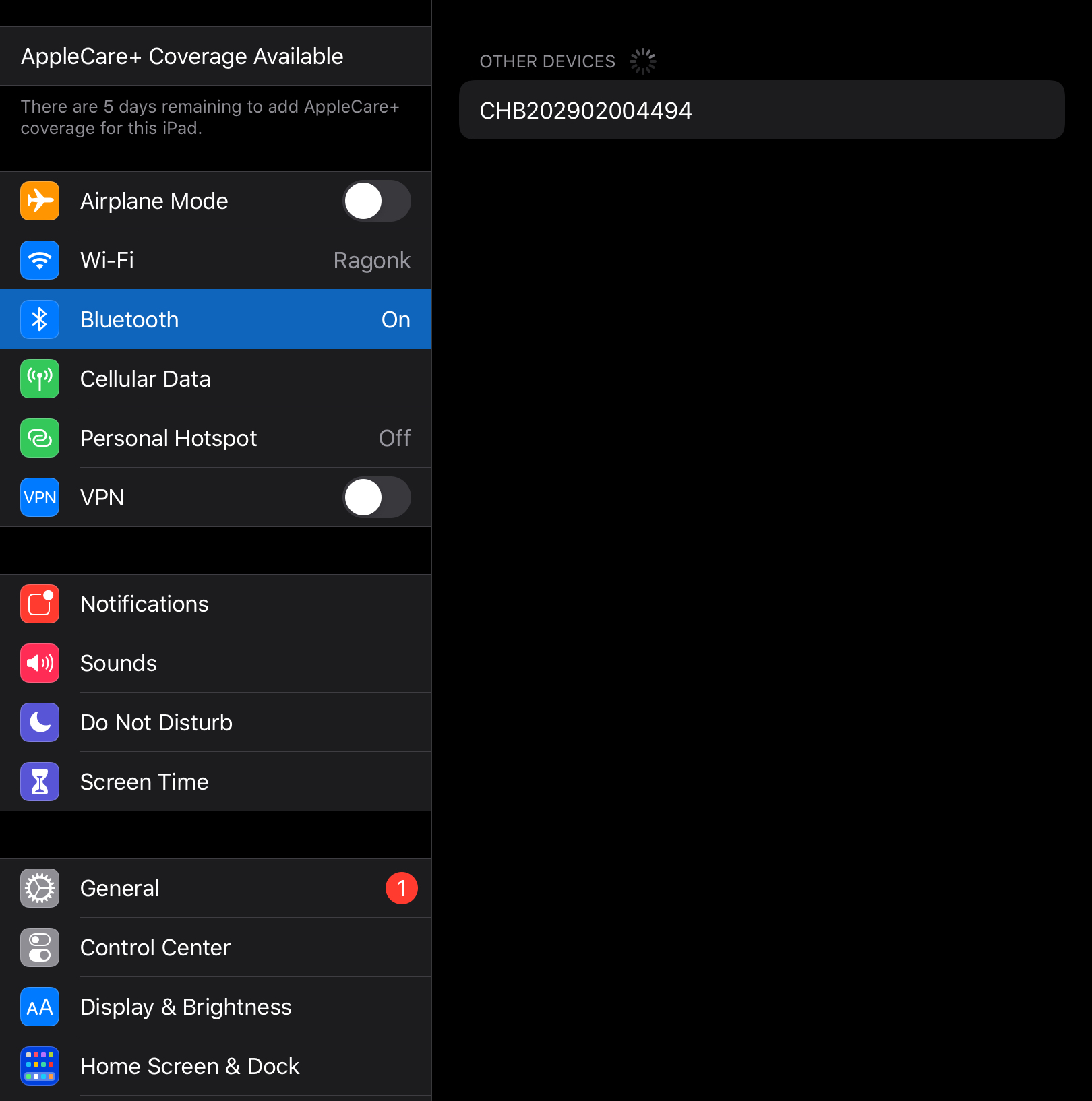
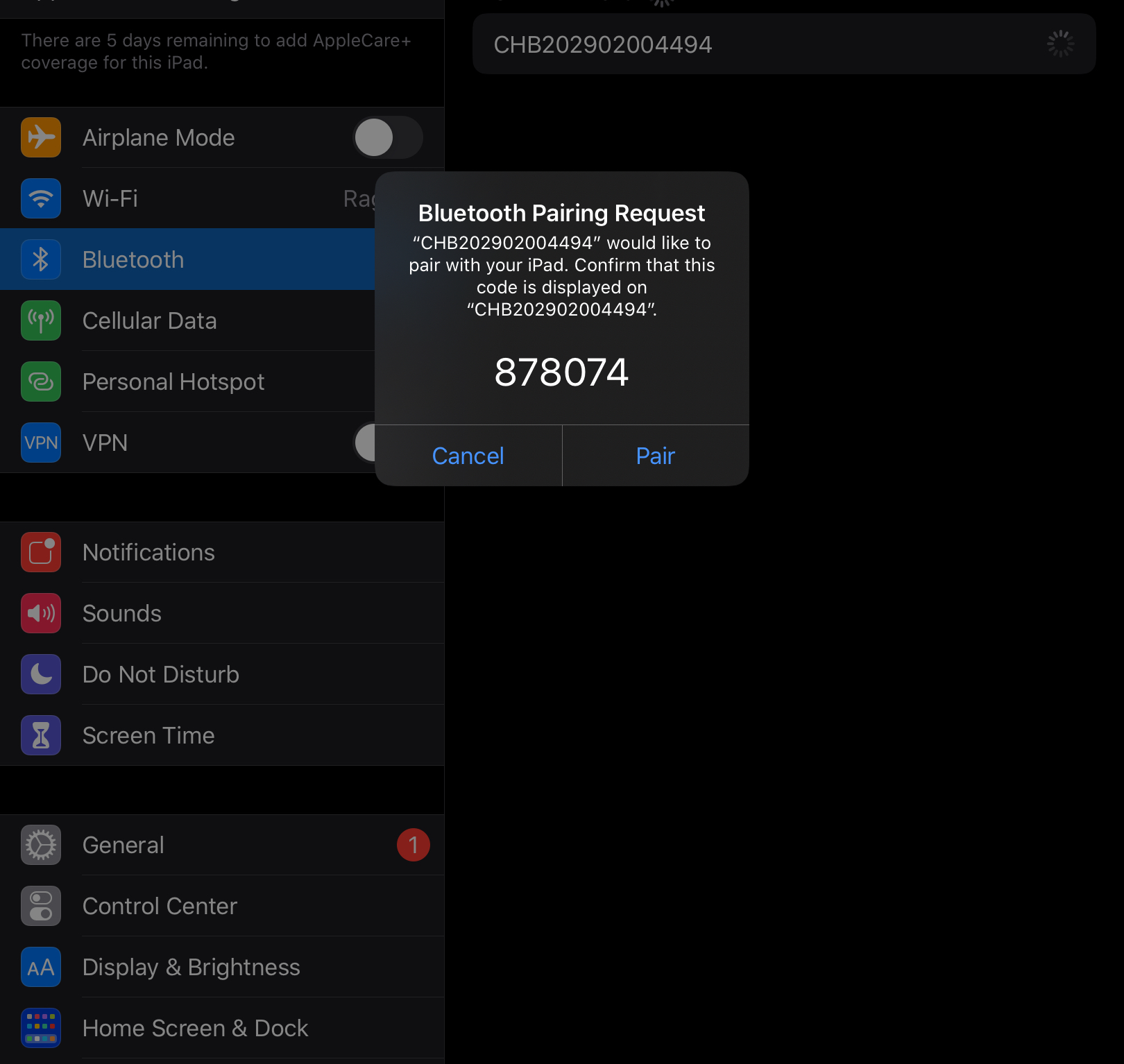
When the reader is selected you will be prompted to pair the device to the iPad. Select pair and the reader will no automatically connect to the iPad.
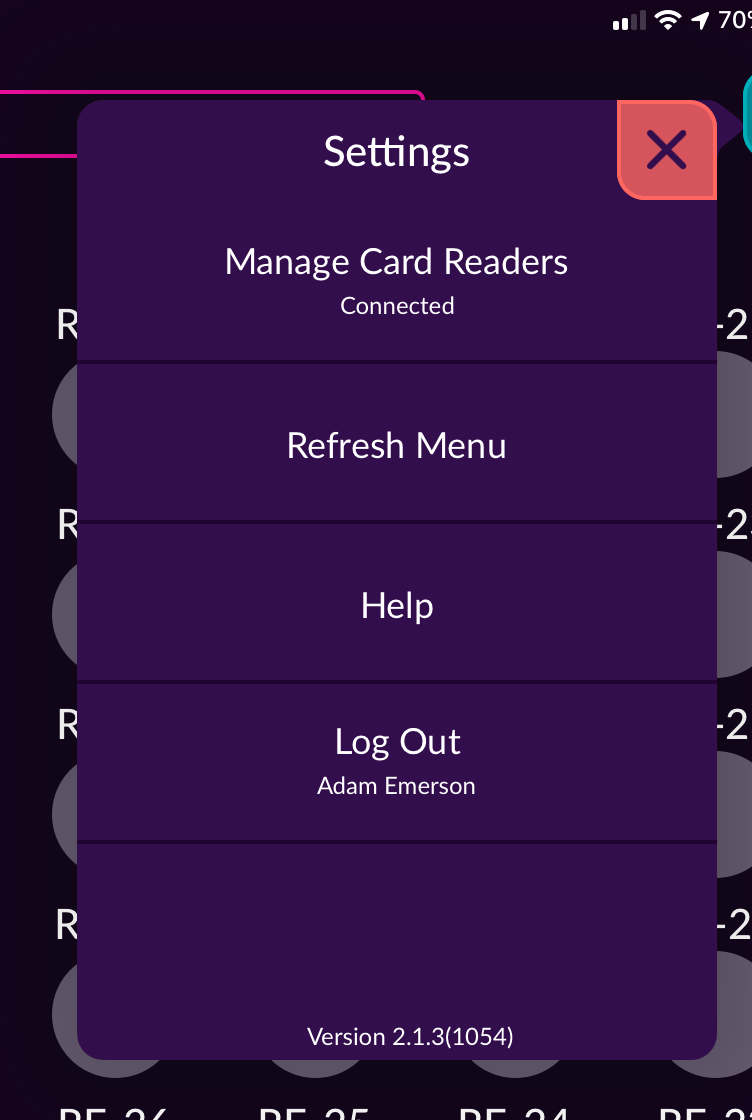
Once the reader is paired to the iPad via Bluetooth it must now be connected in the F&B application as well. In the app select the settings wheel in the top right corner. Select Manage Card Readers
When Manage Card Readers has been selected the user is directed to the Card Reader Management page.
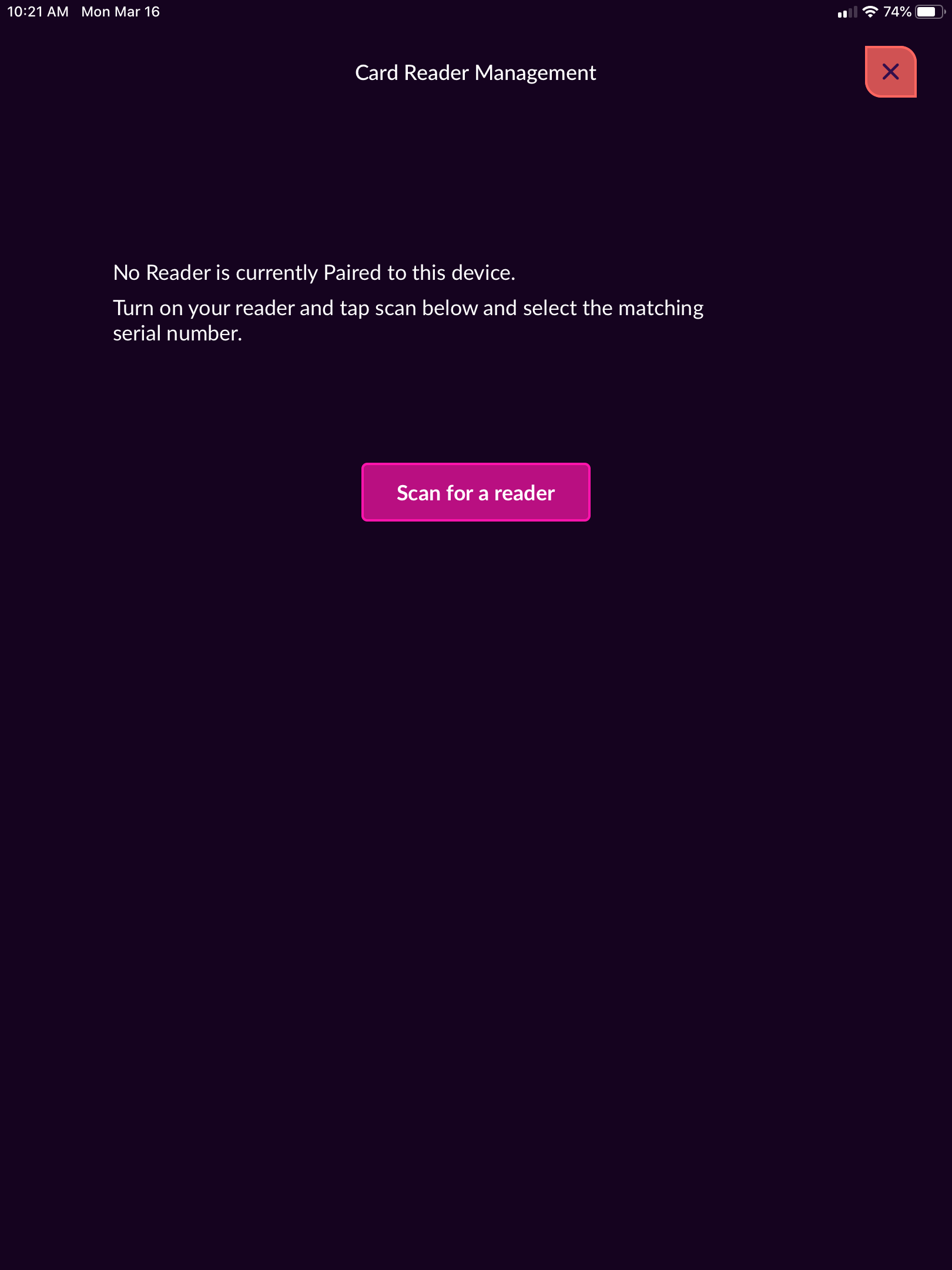
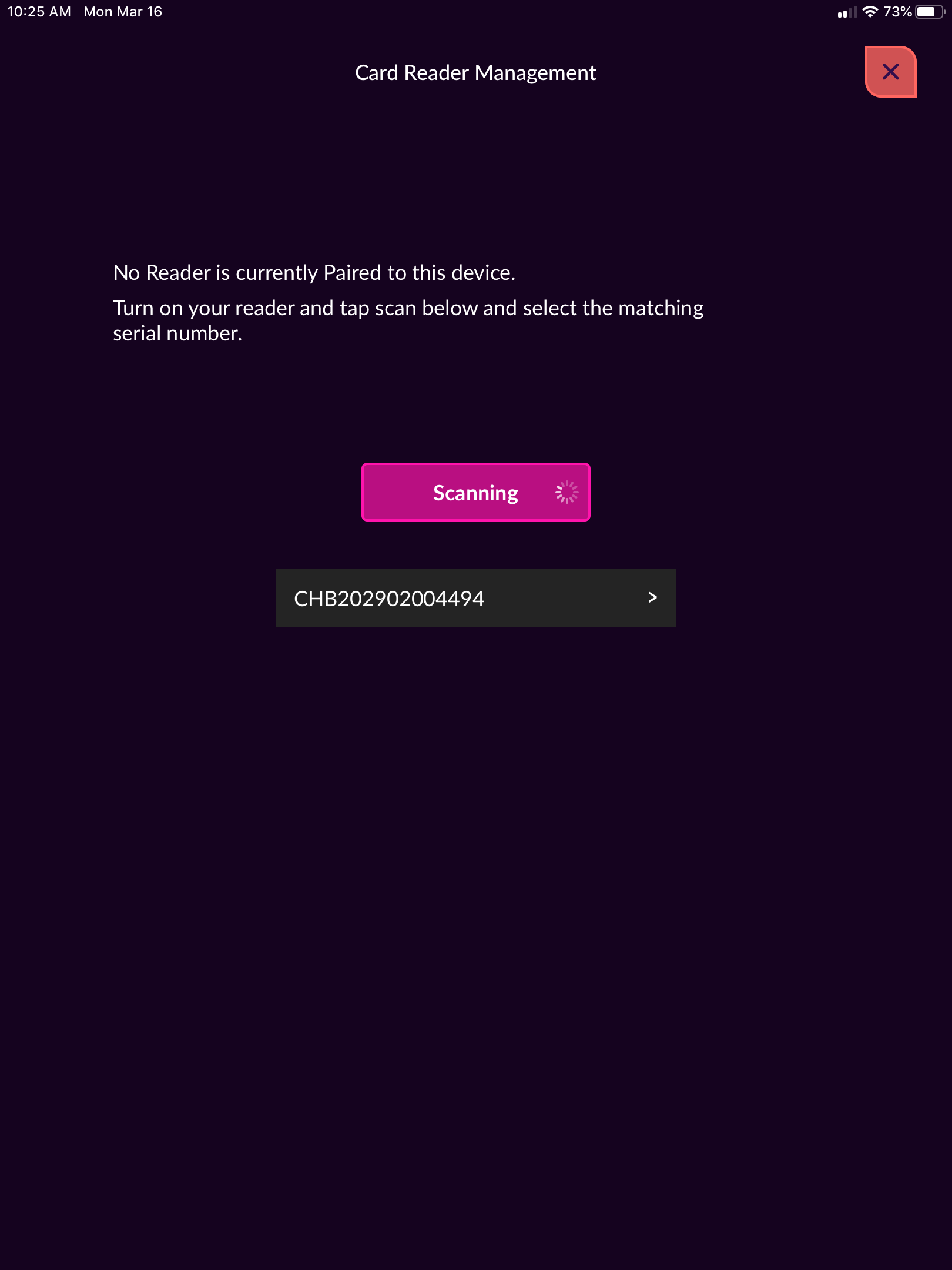
Next, select the Scan for a Reader button and any credit card swiper that is connected to the iPad will appear below that button. If there is not a reader connected an error message will appear stating that no reader was found. This generally happens because the reader is not connected to Bluetooth from the settings section of the iPad.
Select the credit card reader below the Scanning button to connect it to the app.
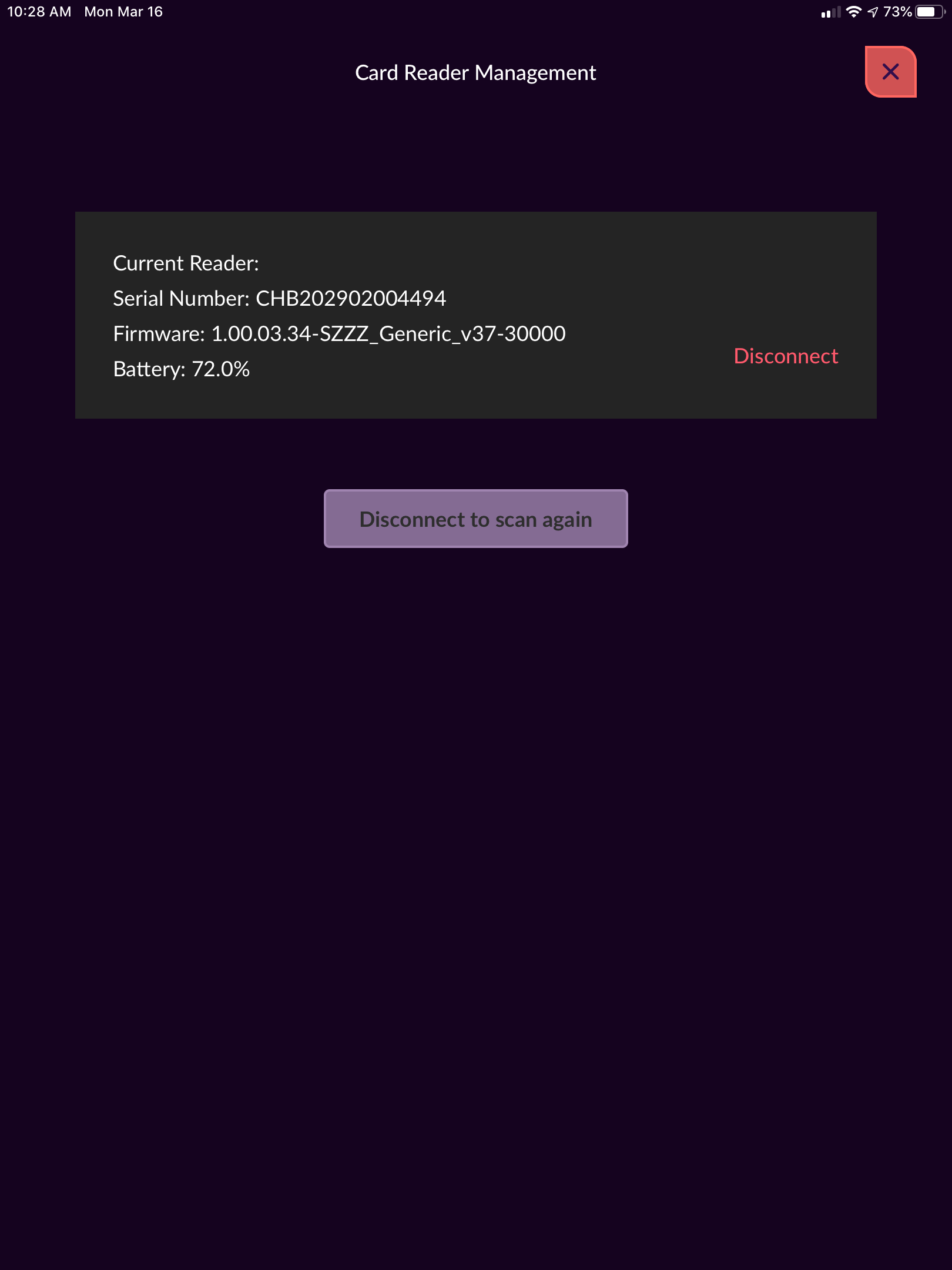
Once the reader is connected you can select the reader and a details section about that reader will appear. This informs you of the serial number, firmware version, and battery percentage levels. This is also where you can disconnect the reader if need be.
Comments
0 comments
Please sign in to leave a comment.