
The Users tab allows you to set access controls on each employee in the app and management suite. To add a New User, select the button in the top right corner.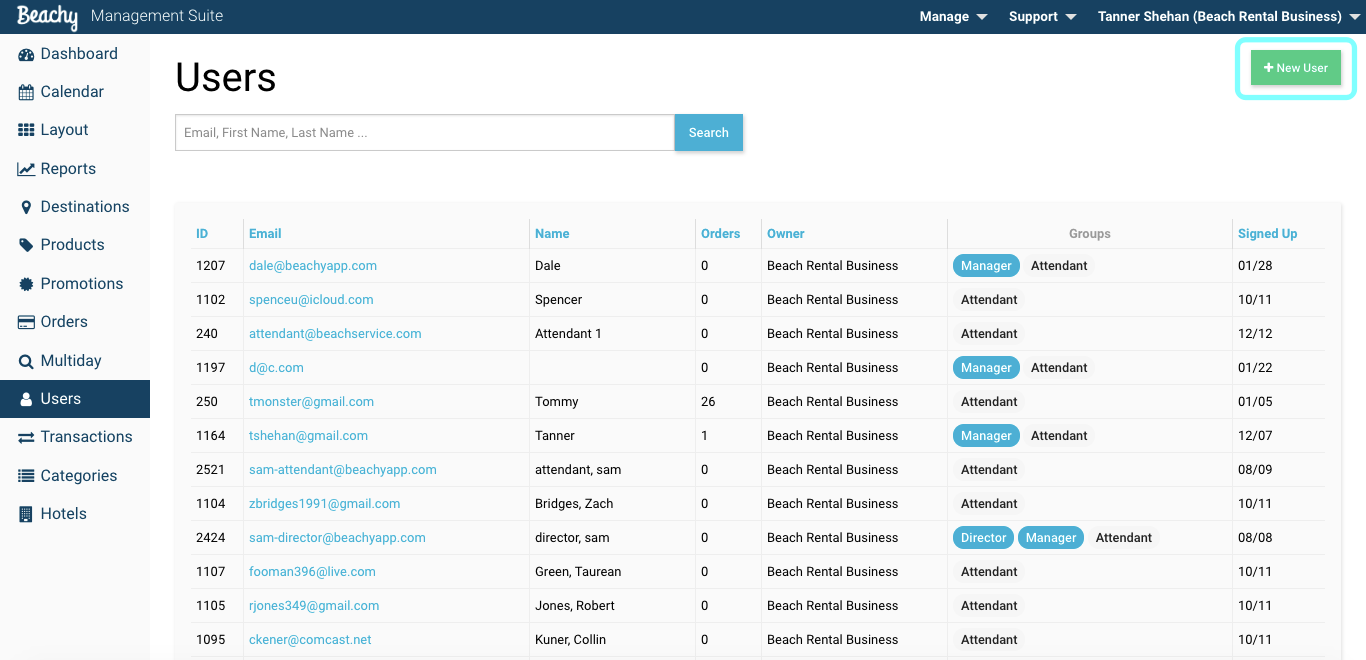
Once selected, a new user form will appear. Enter the user's email, password, first & last name, and time zone.
Note: Password can be reset through the attendant app by the user
The 'Groups' boxes, to assign, set the access controls for the user. The options are Director, Manager, and Attendant.
- Directors: Usually the owners or admin of the business. Directors have full control of products, destinations, users, and financial reporting if they are selected as a manager too. Includes full attendant application control if attendant is selected, as well.
- If a director, check Director, Manger, and Attendant to have full user permissions.
- If only director is selected, the only permissions that are included are full reports and orders' access.
- If a director, check Director, Manger, and Attendant to have full user permissions.
- Managers: Have control to edit products and destinations in the management suite. Managers are only allowed to view up to 2 weeks worth of reporting, create/edit products, and users. Full attendant application control if attendant is selected, as well.
- If only manager is selected, you can see up to 2 weeks of reporting, add/edit users, and access orders.
- Attendants: Can only access the attendant application and process sales. The management suite is completely restricted.
- If an attendant, check only attendant.

The last assignment is the employee's destination control. This control allows your managers or attendants to only see the destinations they are designated to work. If an employee runs multiple destinations, check all that apply.

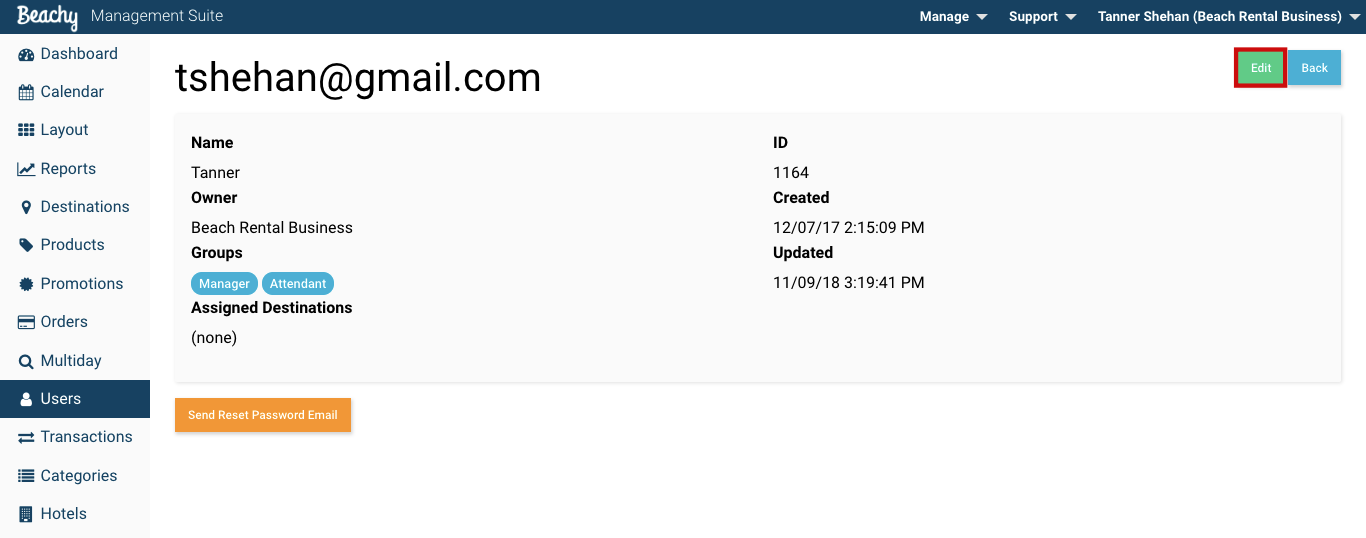
Editing a User.
     - Select the User to edit by clicking on their email address.  The user
information will appear.
     - Click the Edit button
     - Edit any data and save
Comments
0 comments
Please sign in to leave a comment.