
In the Calendar & Orders Tab, you have the ability create a new order. Creating an order through the booking calendar will reserve product inventory in the attendant app, while also adding the booking to the calendar manifest below.
To create a reservation, select the +New Order button.
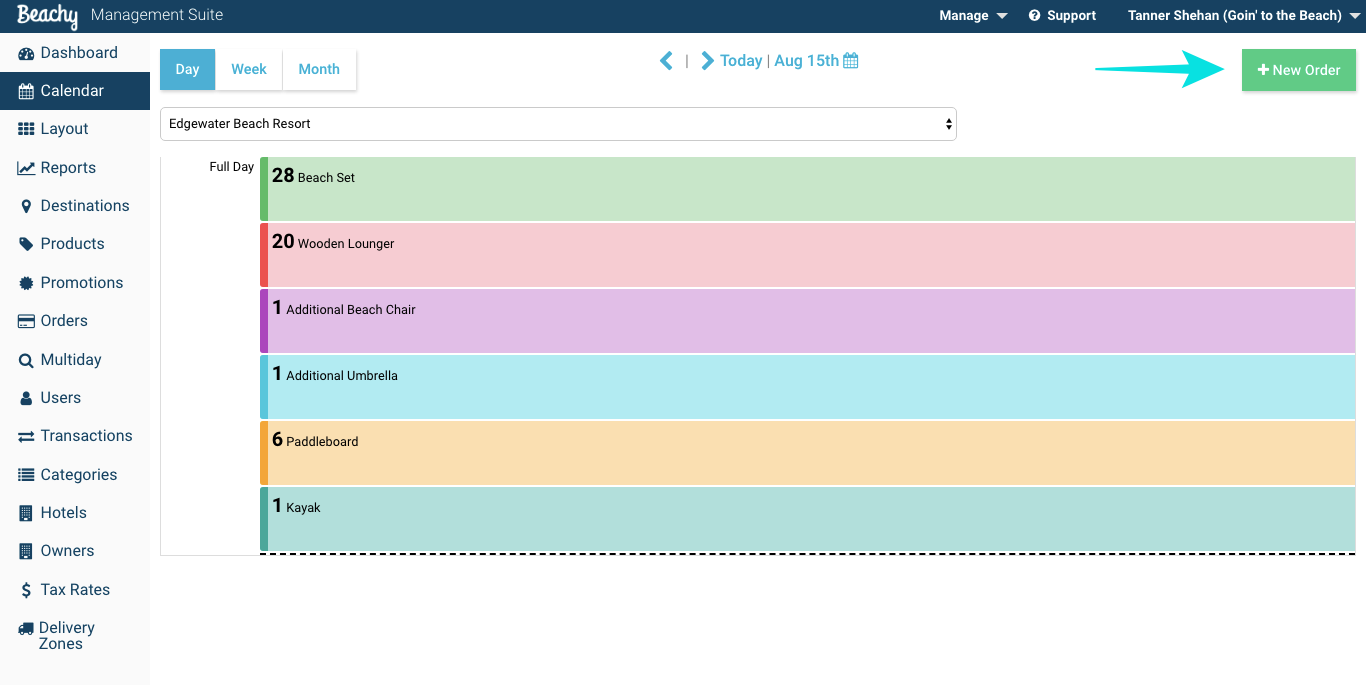
Once selected, the order process begins.
 1) Select the destination of booking
2) Select the product to reserve
3) Click the date or date range of reservation
4) Select the time frame of reservation
***Click this link to learn how to modify item price
Modifying the Price of an Item
5) Click the +Add Product button to add to cart
6) Repeat steps 2-5 to add additional products to the cart
7) Enter the amount to pay. You can enter an entire or partial payment amount.
8) Enter the customer's name and any additional data you would like to collect.
 9) Select the payment method and enter any notes that you would like to include with the order.
10) Finalize Order
Comments
0 comments
Please sign in to leave a comment.